Guide

Design carousels by chatting with Claude

Connect SlideGen to Claude once. Then describe the carousel you want and Claude builds it in your SlideGen account, checks every slide, and hands you the editor link. It can draft and schedule your LinkedIn posts too.

What you get

Everything you do in SlideGen, from a chat

  • Design carousels

    From an idea, a thread, notes or a transcript. Claude writes the copy and lays out every slide.

  • Check its own work

    Claude renders the slides, looks at them, and fixes what looks off before it replies.

  • Refine on request

    “Make slide 3 a stat”, “switch to light”, “shorter”. It edits your real carousel, not a copy in the chat.

  • Post to LinkedIn

    Draft posts, schedule them, spread a batch across your week, or publish now after you confirm.

  • Hand it back to you

    Every carousel comes with an editor link and a download link for the PNGs.

  • Keep things tidy

    Find, rename, duplicate or archive carousels without leaving the chat.

Setup

Connect SlideGen to Claude

You need a SlideGen account and a Claude account. Claude’s Free plan includes one custom connector.

  1. Copy the connector URL

    It’s also in SlideGen under Account settings → MCP Access.

    https://app.slidegen.studio/api/mcp
  2. Add it in Claude

    On claude.ai or Claude Desktop, open Customize → Connectors, click + Add, then Add custom connector. Name it SlideGen, paste the URL, click Continue, then Add.

  3. Sign in and allow

    Claude opens SlideGen. Sign in with your usual method and click Allow. You’re sent straight back to Claude.

  4. Turn it on in a chat

    Click + under the message box, open Connectors, and switch on SlideGen. Then ask: “Is SlideGen connected?”

On a Claude Team or Enterprise plan, an owner adds SlideGen under Organization settings → Connectors, then you click Connect next to it.

Examples

One prompt, a finished carousel

Each of these was built in SlideGen through the Claude connector from the prompt shown. Scroll sideways to see every slide.

From a one-line idea

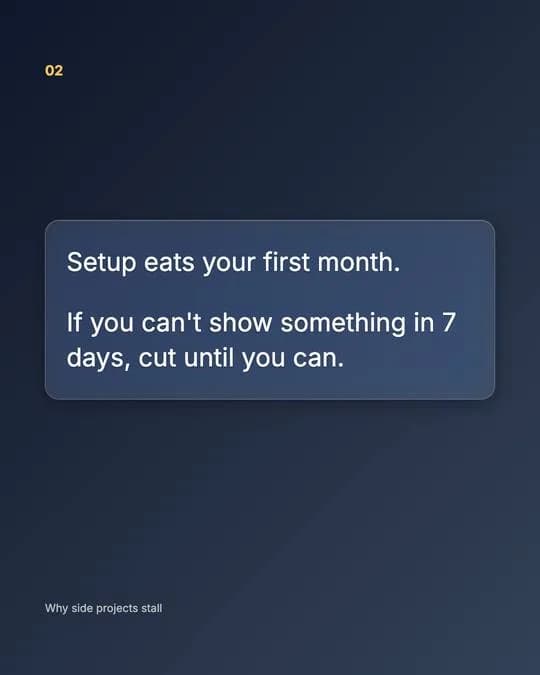
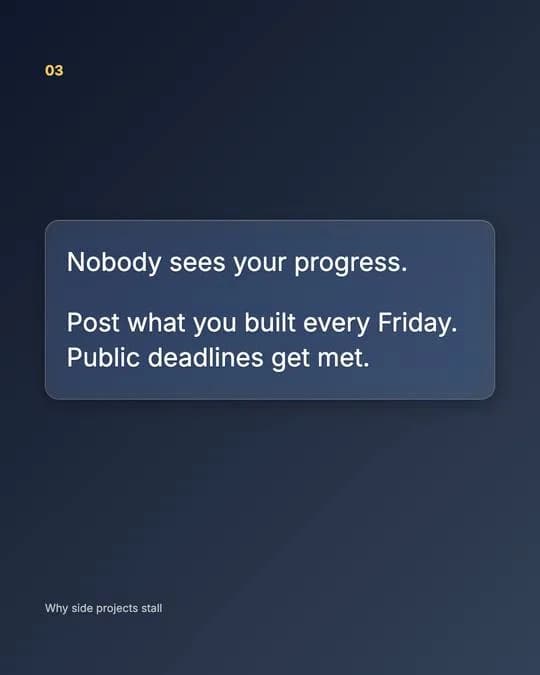
Design a 6-slide LinkedIn carousel about why most side projects never ship. Dark look, a hook that stops the scroll, one idea per slide, and end by asking people what they're shipping this month.


From a one-line idea, slide 1 of 6From a one-line idea, slide 2 of 6From a one-line idea, slide 3 of 6From a one-line idea, slide 4 of 6From a one-line idea, slide 5 of 6From a one-line idea, slide 6 of 6

Claude wrote the copy, picked a dark theme and a single accent colour, numbered the body slides, and checked every slide before replying.
From a thread you already wrote

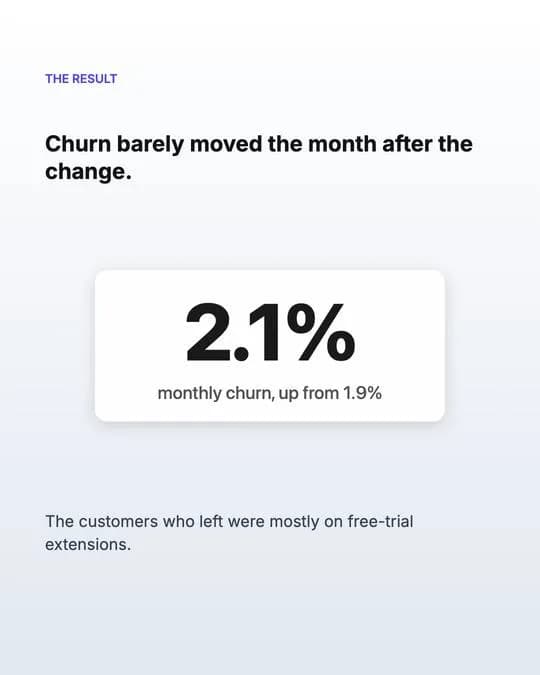
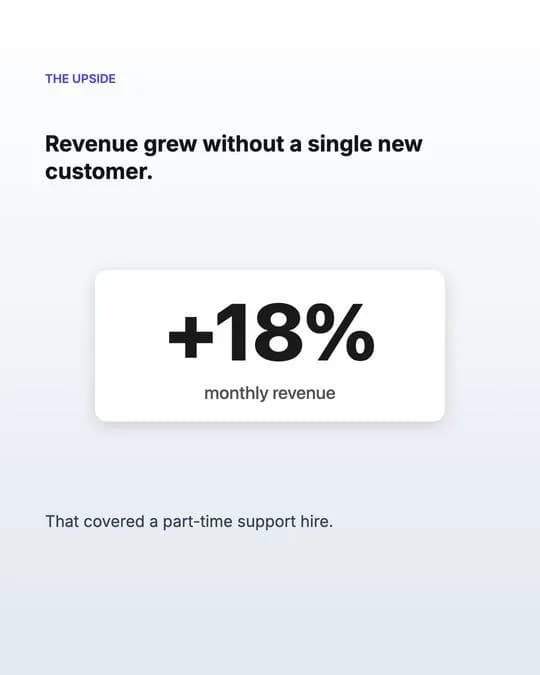
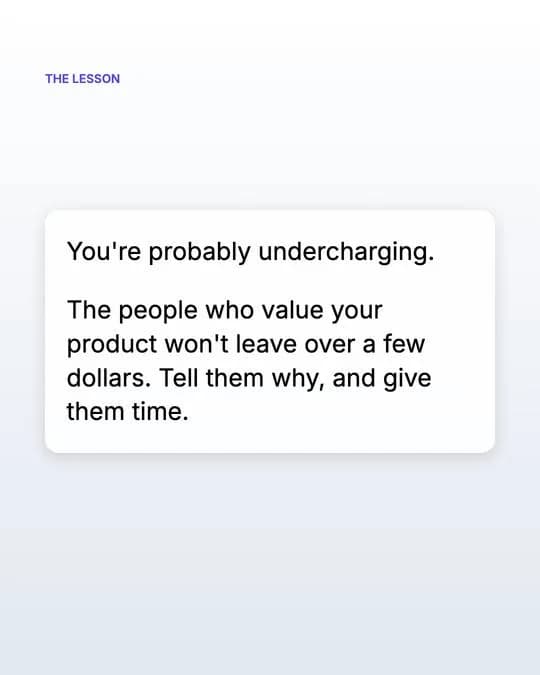
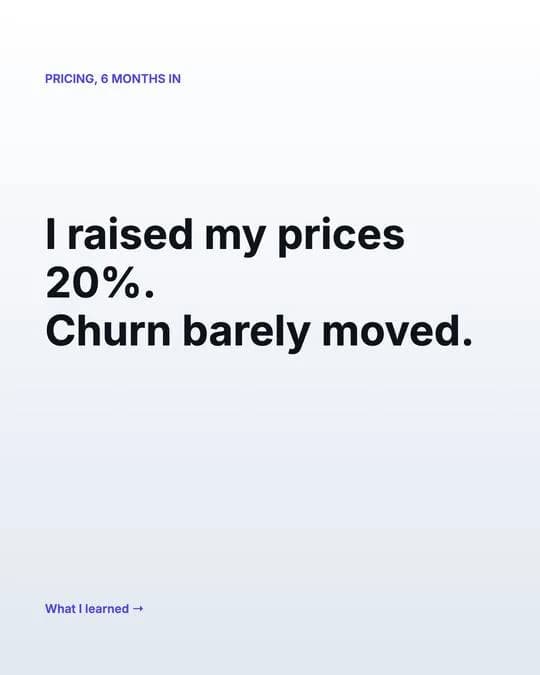
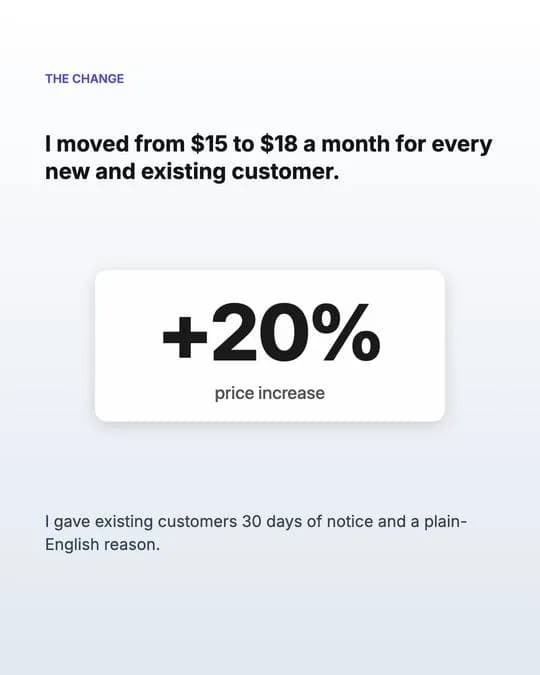
Turn this thread into an Instagram carousel. Keep my numbers exactly, give each number its own slide, and keep it light and clean. I raised my prices 20% six months ago. Here's what happened. I moved from $15 to $18 a month for new and existing customers, with 30 days' notice and a plain-English reason. Churn went from 1.9% to 2.1% the month after. Most of the people who left were on free-trial extensions. Monthly revenue grew 18% without a single new customer. It paid for a part-time support hire. Lesson: you're probably undercharging. The people who value your product won't leave over a few dollars.

From a thread you already wrote, slide 1 of 6From a thread you already wrote, slide 2 of 6From a thread you already wrote, slide 3 of 6From a thread you already wrote, slide 4 of 6From a thread you already wrote, slide 5 of 6From a thread you already wrote, slide 6 of 6

Your numbers become stat cards, word for word. Claude is told never to invent figures, so give it the real ones.

A tutorial with real code

Make a carousel for developers explaining JavaScript debounce: the problem, a short code example, and how to use it. Purple, techy look.

A tutorial with real code, slide 1 of 5A tutorial with real code, slide 2 of 5A tutorial with real code, slide 3 of 5A tutorial with real code, slide 4 of 5A tutorial with real code, slide 5 of 5

Code goes into terminal-style code cards with syntax highlighting. Claude keeps lines short so nothing wraps.

Prompt library

Prompts to copy

Copy one, paste it into Claude with SlideGen switched on, and change the details to fit your topic.

Start from an idea

Say who it is for, what the reader should get, and how it should end.

  • Make an Instagram carousel for freelance designers: 5 mistakes that make clients ghost you. Light and minimal, numbered slides, and end with "save this".

  • I'm a fitness coach. Create a 7-slide carousel that busts the myth that you need to train every day. Friendly tone, bold hook, end with "Follow for more".

  • Give me three hook options for a carousel about remote work burnout, then build the carousel with the one you think is strongest.

Turn your content into a carousel

Paste the text right after the prompt. Claude keeps your wording and numbers.

  • Here's my newsletter from this week. Pull out the one strongest idea and turn it into a 6-slide LinkedIn carousel. Don't try to summarize everything.

  • Turn this video transcript into a carousel for junior developers. Use a code slide where it helps.

  • Turn these meeting notes into a 5-slide carousel for my team: what we decided, what changes, and who owns what.

Refine a carousel

Claude reads the current slides first, so it changes only what you ask.

  • Open my carousel about pricing and make the hook punchier.

  • On slide 3, turn the main point into a big stat card.

  • Switch the whole carousel to a light theme.

  • Every slide feels wordy. Cut each one to under 25 words.

  • Duplicate it first, then try a bolder version so I can compare the two.

  • Show me the slides.

Fit the platform

SlideGen supports 4:5, 1:1, 9:16, 16:9 and 1.91:1.

  • Make a 9:16 copy of this carousel for TikTok and Instagram Stories.

  • Make a square 1:1 version of my LinkedIn carousel for X.

  • Give me the download link for all the slides as PNGs.

LinkedIn posts and scheduling

Connect LinkedIn in SlideGen first. Claude checks the connection before it schedules anything.

  • Is my LinkedIn connected and ready to post?

  • Write a LinkedIn post to go with my side-projects carousel and save it as a draft.

  • Schedule that post for Tuesday at 9:00 my time. I'm in New York.

  • I have six drafts. Spread them over Tuesdays and Thursdays at 9:00 New York time, starting next week. Show me the plan before you schedule anything.

  • What's scheduled for this week?

  • Why did my last post fail?

  • Publish the pricing post now.

Put it all together

Claude can chain several steps in one request.

  • Turn this blog post into a LinkedIn carousel and a short post to go with it. Save the post as a draft and give me the editor link for the carousel.

  • Plan my LinkedIn week from these notes: write three posts, save them as drafts, and schedule them Monday, Wednesday and Friday at 8:30 London time. Check with me before scheduling.

  • Find my last three carousels, tell me which hook is weakest, and rewrite it.

Better results

Tips

  • Say who it is for

    Name the audience and the one thing they should take away. "For first-time founders" beats "about startups".

  • Paste the real material

    Threads, notes, transcripts and newsletters make the best carousels. Claude keeps your numbers and does not invent stats.

  • Use image links, not uploads

    Images you drop into the chat can’t be passed to SlideGen. Give Claude a public image URL, or add the image in the editor afterwards.

  • Ask to see it

    Claude renders its slides and fixes what looks off before it replies. Ask "show me the slides" whenever you want to look too.

  • Finish in the editor

    Every reply includes an editor link. Swap a word or nudge a card there, then export as usual.

  • Stay in control of posting

    By default Claude asks for your approval before it uses a SlideGen action. Choose “Allow always” only for the ones you’re comfortable with, like previews.

Good to know

What it can’t do yet

  • Images dropped into the chat can’t reach SlideGen. Use public image URLs, or add images in the editor.
  • LinkedIn posts can carry text and one image. Posting a carousel as a LinkedIn document isn’t supported yet.
  • Styling uses SlideGen’s curated themes and presets, on purpose. Ask for a mood ("dark and bold", "light and minimal"), not exact fonts or pixel sizes.
  • You need a SlideGen account before connecting. If you sign up halfway through, start the connection again from Claude.

FAQ

Questions

Do I need a paid Claude plan?

No. Claude’s Free plan includes one custom connector; Pro, Max, Team and Enterprise plans can add more. On Team and Enterprise, an owner adds SlideGen under Organization settings → Connectors, then each member clicks Connect.

What can Claude see and change?

Only your own SlideGen carousels and LinkedIn posts, and only after you click Allow. It can’t see other people’s projects or your password.

How do I disconnect?

In SlideGen, open Account settings → MCP Access and click Disconnect next to Claude. It stops working immediately. You can also remove the connector in Claude.

Will Claude post to LinkedIn without asking?

Publishing and deleting are marked as sensitive, and Claude asks for your approval before using them unless you chose “Allow always”. For a week of posts, Claude shows you the schedule before it commits it.

Can I use it from Claude Code?

Yes. Create an API key in Account settings → MCP Access, then run: claude mcp add --transport http slidegen https://app.slidegen.studio/api/mcp --header "Authorization: Bearer YOUR_KEY"

Ready to try it?

Add the connector, switch it on in a chat, and ask for your first carousel.